
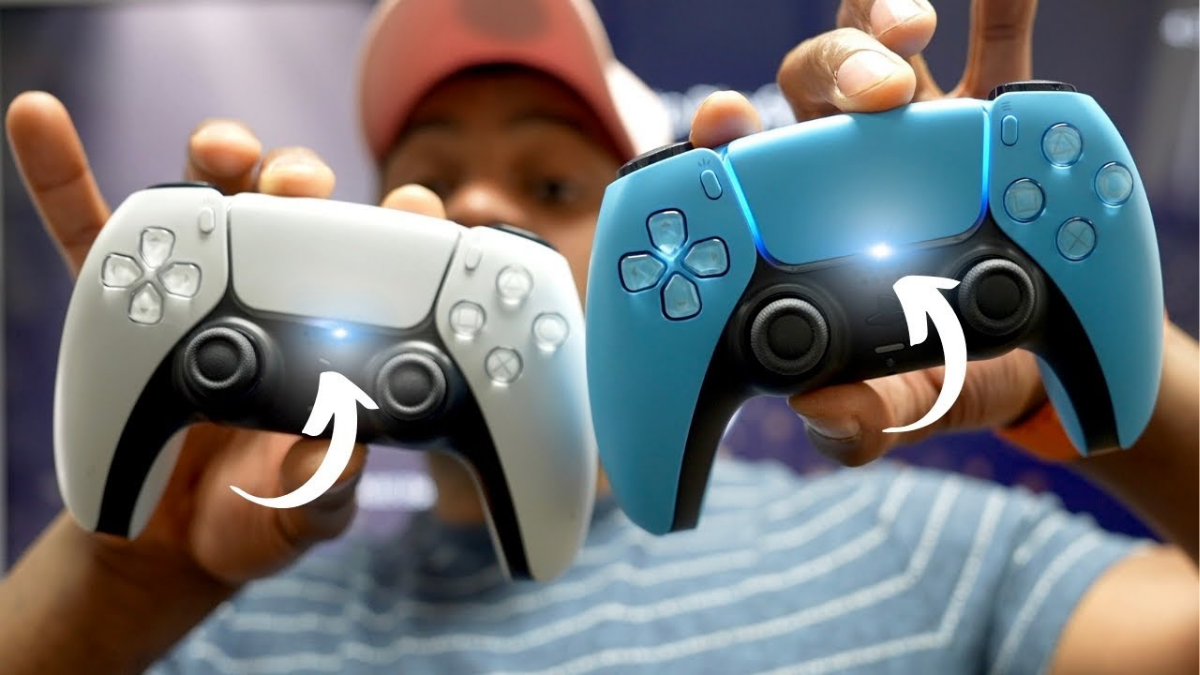
Do you want to play games with a friend or family member on your PlayStation 5? Learning how to connect two controllers on PS5 is simple and only takes a few minutes. Whether you want to enjoy football games, racing games, fighting games, or other multiplayer experiences, having two connected controllers allows you to enjoy gaming together.
The PlayStation 5 uses the DualSense wireless controller, which offers advanced features such as haptic feedback, adaptive triggers, and motion controls.
In this beginner-friendly guide, we will explain how to connect two controllers to your PS5, how to pair a second DualSense controller, how to connect controllers using Bluetooth, and how to fix common connection problems.
1. What You Need Before Connecting Two Controllers on PS5
Before connecting a second controller, make sure you have the following:
- A PlayStation 5 console.
- Two compatible PS5 controllers.
- A USB-C charging cable.
- A working PS5 console.
- Enough battery power in both controllers.
You can connect your second controller wirelessly after completing the initial pairing process.
2. How to Connect Two Controllers on PS5 Using a USB Cable
The easiest way to connect a second PS5 controller is by using a USB-C cable.
Follow these simple steps:
Step 1: Turn on your PS5
Press the power button on your PlayStation 5 console or use your first controller to switch it on.
Step 2: Connect the first controller
Make sure your first DualSense controller is already connected and working properly.
Step 3: Connect the second controller
Take your second DualSense controller and connect it to the PS5 using a compatible USB-C cable.
Step 4: Press the PS button
Press the PlayStation (PS) button located in the centre of the second controller.
Step 5: Select a user account
Your PS5 may ask you to select an existing user account or add a new user. Choose the appropriate option.
Step 6: Disconnect the USB cable
Once the second controller has successfully paired, you can disconnect the cable and use the controller wirelessly.
Congratulations! Both controllers should now be connected to your PS5.
3. How to Connect a Second PS5 Controller Wirelessly
If you do not want to use a USB cable, you can pair your second DualSense controller through Bluetooth.
However, you will need an already connected controller to navigate the PS5 settings.
Follow these steps:
- Turn on your PS5.
- Open Settings from the home screen.
- Select Accessories.
- Select General.
- Choose Bluetooth Accessories.
- On your second controller, press and hold the Create button and PS button simultaneously.
- Keep holding until the controller light starts flashing.
- Select the second controller when it appears on your PS5 screen.
Once connected, the second controller should be ready to use.
4. How to Connect Two Controllers to Different PS5 User Accounts
If two people want to play together using separate profiles, you can assign each controller to a different user.
Here’s how:
- Connect both controllers to your PS5.
- Press the PS button on the second controller.
- Select Switch User or Add User when prompted.
- Choose an existing account or create a new user.
- Confirm your selection.
Each controller can now be associated with its own user account.
This is particularly useful when playing multiplayer games that support separate player profiles.
5. How to Play Multiplayer Games with Two Controllers on PS5
After connecting both controllers, you can start enjoying local multiplayer games.
Follow these steps:
- Make sure both controllers are connected.
- Open a multiplayer game on your PS5.
- Select the local multiplayer or offline multiplayer option.
- Press the required button on the second controller to join.
- Select your player profile if prompted.
- Start playing with your friend or family member.
Remember that not every PS5 game supports two-player local multiplayer. Always check the game’s player information before downloading or purchasing it.
Some popular games with local multiplayer options include:
- EA SPORTS FC – Enjoy local football matches with friends.
- Mortal Kombat 1 – Compete in fighting matches.
- Gran Turismo 7 – Enjoy supported split-screen racing modes.
- Overcooked! All You Can Eat – Work together in cooperative cooking challenges.
- Sackboy: A Big Adventure – Enjoy cooperative platform gaming.
6. How to Fix a Second PS5 Controller That Is Not Connecting
Sometimes, your second DualSense controller may fail to connect to your PS5.
Here are some common problems and their solutions.
Problem 1: The Controller Is Not Pairing
Make sure the USB cable supports data transfer and is not just a charging cable. Try another compatible cable if necessary.
Problem 2: The Controller Is Not Turning On
Charge the controller using a compatible USB-C cable. A completely drained battery may prevent it from connecting immediately.
Problem 3: The Controller Light Keeps Flashing
Try restarting your PS5 and pairing the controller again. You can also try resetting the controller.
Problem 4: The Controller Is Connected but Not Working in the Game
Check whether the game supports local multiplayer. Also, make sure the second player has joined the game using the correct button or menu option.
Problem 5: The Controller Keeps Disconnecting
Check the controller’s battery level and make sure there are no significant wireless interference problems.
7. How to Reset a PS5 DualSense Controller
If your second controller continues experiencing connection problems, resetting it may help.
Follow these steps:
- Turn off your PS5.
- Disconnect the controller from any USB cable.
- Turn the controller over.
- Locate the small reset hole on the back of the controller.
- Use a small pin or similar tool to press the reset button.
- Hold it for approximately five seconds.
- Connect the controller to your PS5 using a USB-C data cable.
- Press the PS button to pair it again.
Resetting your controller does not erase your PS5 games or console data.
8. Can You Connect More Than Two Controllers to PS5?
Yes! The PlayStation 5 supports connecting up to four controllers simultaneously.
This means you can enjoy supported multiplayer games with friends and family using multiple DualSense controllers.
However, the number of players allowed depends on the specific game. Some games support two players, while others support three or four local players.
Always check the game’s multiplayer specifications before playing.